
Step 1
Upload the image to pixelate
Portraits, pets, and game-worthy objects convert best. Strong silhouettes matter most, because pixel art lives or dies on whether the subject reads clearly at a tiny scale.
Image converters
Turn photos into retro pixel art with AI. Crisp 8-bit and 16-bit styling for game-ready avatars, sprites, stickers, and nostalgic creative assets.
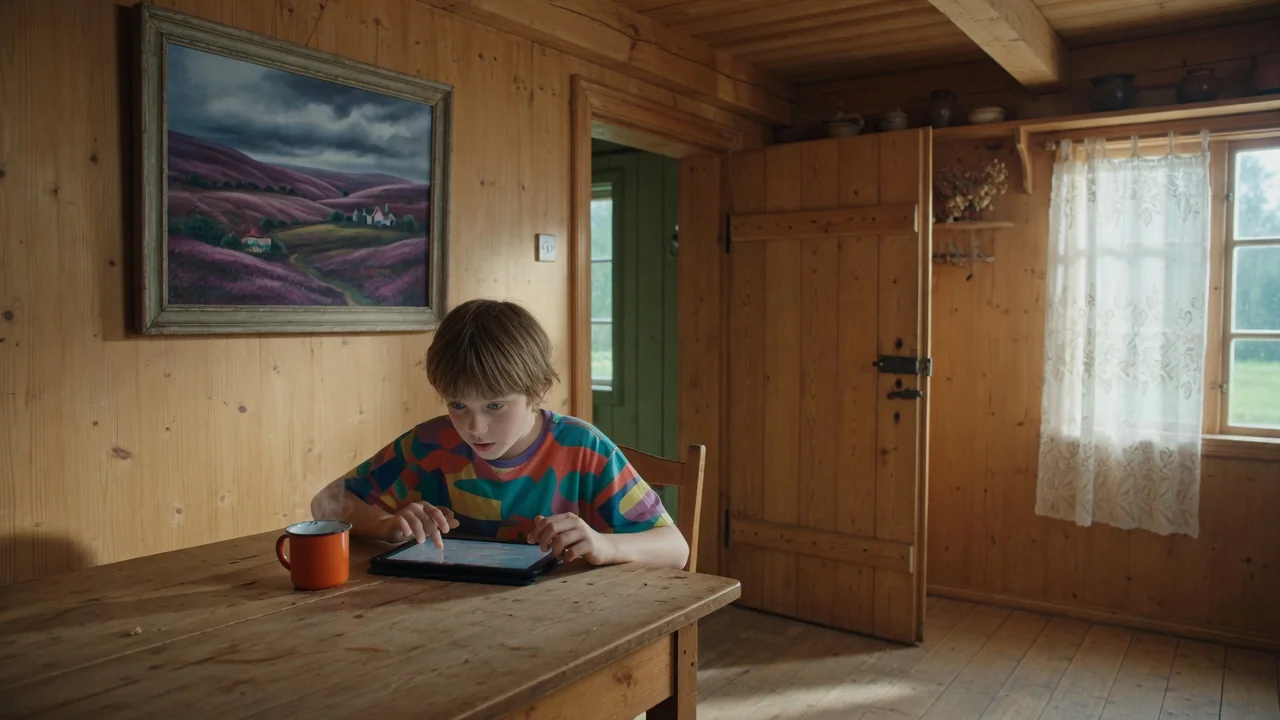
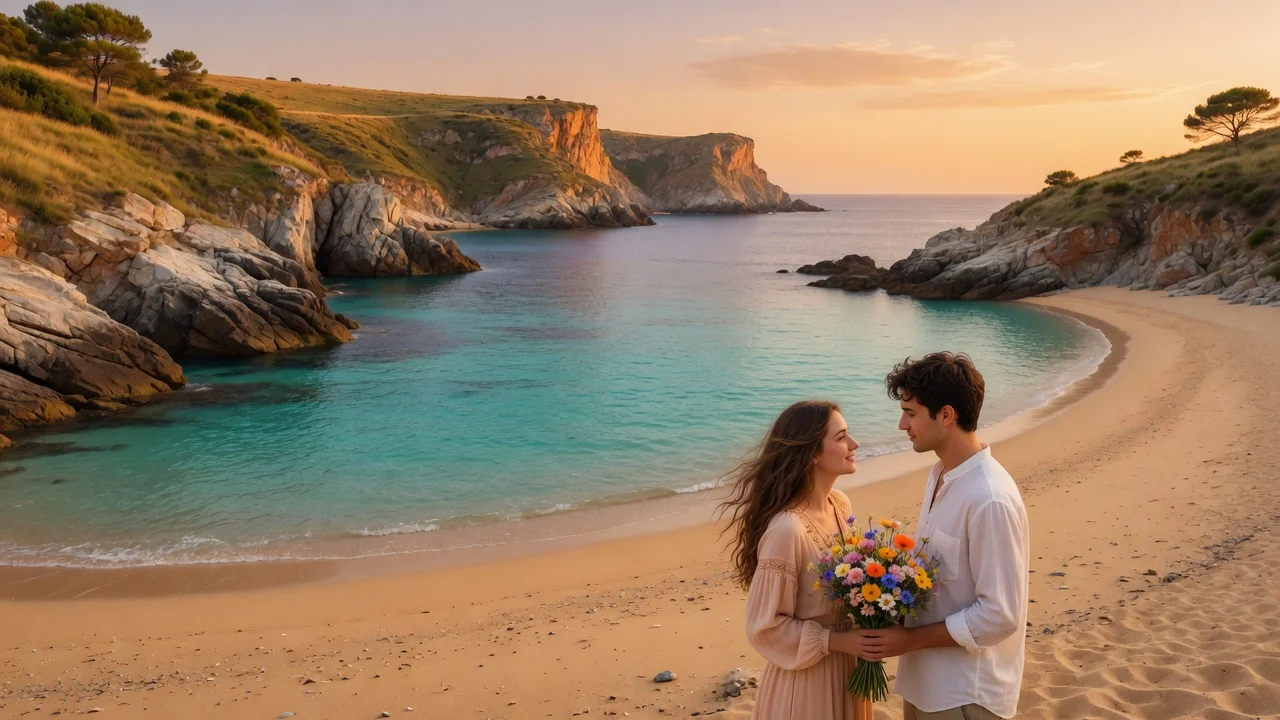
Input
1 image upload
Output
Image
Convert an uploaded image
Default model
Upload photo
PNG, JPG, WebP up to 10MB
Aspect ratio
How it works
Step 1
Portraits, pets, and game-worthy objects convert best. Strong silhouettes matter most, because pixel art lives or dies on whether the subject reads clearly at a tiny scale.
Step 2
Nano Banana 2 defaults to readable silhouettes and a limited palette. Prompt 8-bit for chunky NES-era blocks, 16-bit for finer SNES-style detail, or specify a palette like Game Boy green.
Step 3
Render the pixel version, verify it stays legible when scaled down, and export as a square image for avatars, stickers, or concept art. Rerun to try different palette constraints.
Why use it
Each tool uses a known model route instead of asking users to guess IDs.
Best for fast visual remixing and broad prompt coverage when strict identity preservation is not the main risk.
Ready tools connect directly to the AI Pin Maker generation workspace.
Related tools help continue from generation into cleanup, conversion, and publishing assets.
FAQ
Nano Banana 2 redraws your image on a coarse pixel grid with a deliberately limited palette, choosing which details to keep so the silhouette stays readable — mimicking how real sprite artists economize detail.
8-bit prompting yields chunkier blocks, fewer colors, and bold NES-era simplicity; 16-bit allows finer detail, more shades, and smoother dithering like SNES art. Specify either in your prompt to steer the era.
Results work well as concept art, avatars, and mockups. For production sprites, treat the render as a reference — it is a stylized image, not a grid-perfect sheet with transparent background or animation frames.
Standard image resizing smooths pixels. Scale up using nearest-neighbor interpolation in your editor to keep edges crisp, or display the exported image at integer multiples of its original size.
Related tools
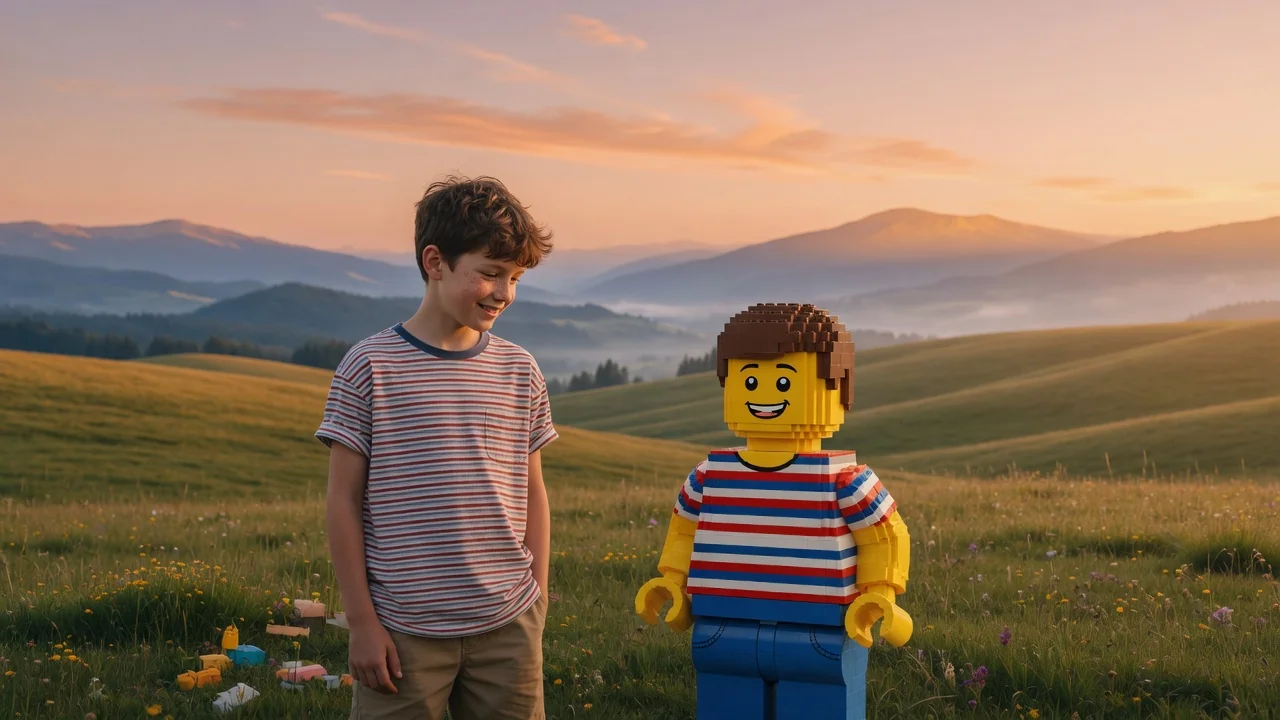
Turn people, pets, or scenes into a brick-built LEGO-style image with AI. Recognizable minifigure looks and blocky charm for fun, shareable creations.
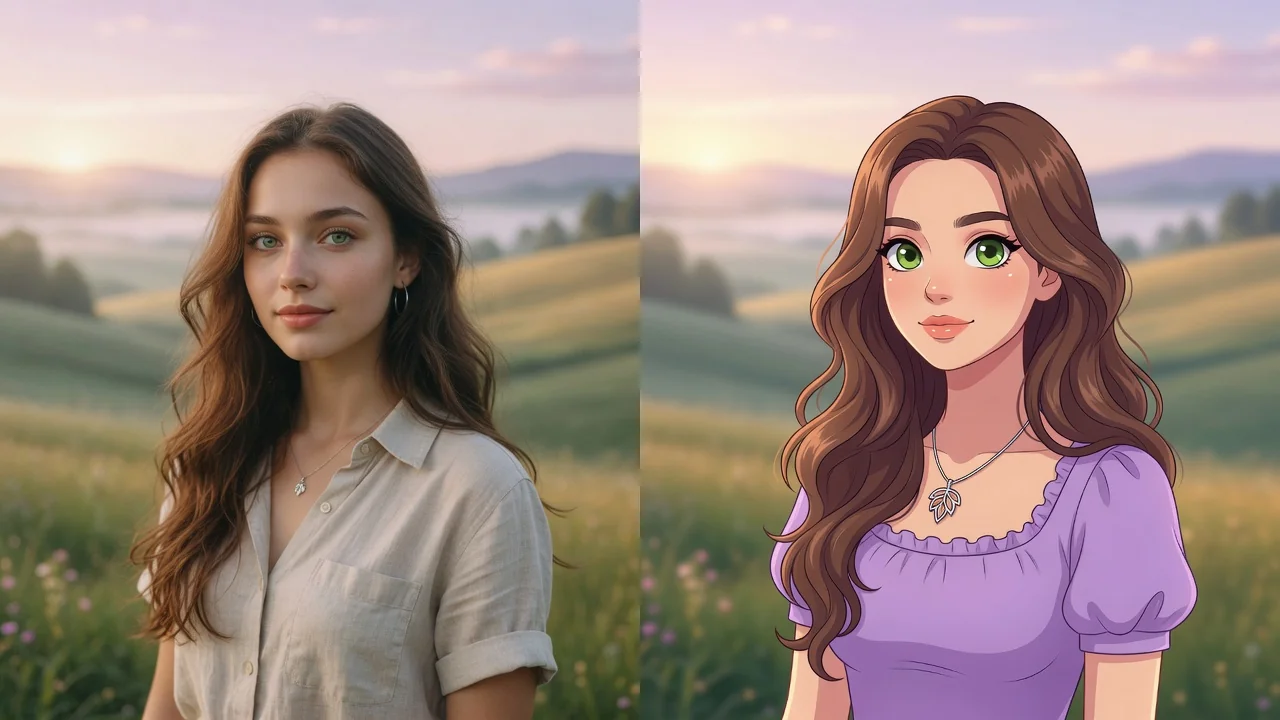
Turn any photo into a polished cartoon with AI. Clean linework and vivid color keep your subject recognizable for avatars, stickers, and fun profile pics.
Generate logo ideas in seconds with AI. Explore clean shapes, brand colors, and typography directions to kickstart your business or project identity.