
Step 1
Upload One Portrait
Add a single clear photo of the face you want to age. Frontal shots with visible skin texture give the transformation the most believable detail to work with.
AI effects
See yourself younger or older with the AI age filter. Realistic face aging and de-aging preserve your features for fun portraits and what-if previews.
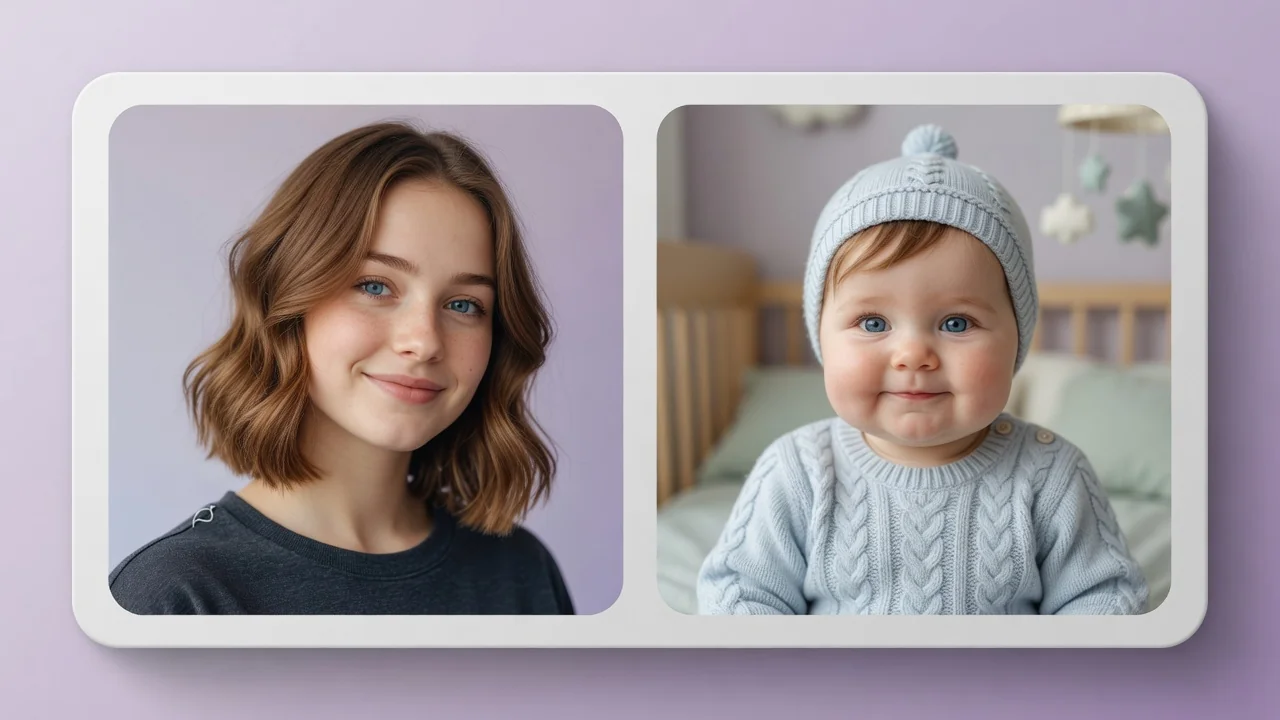
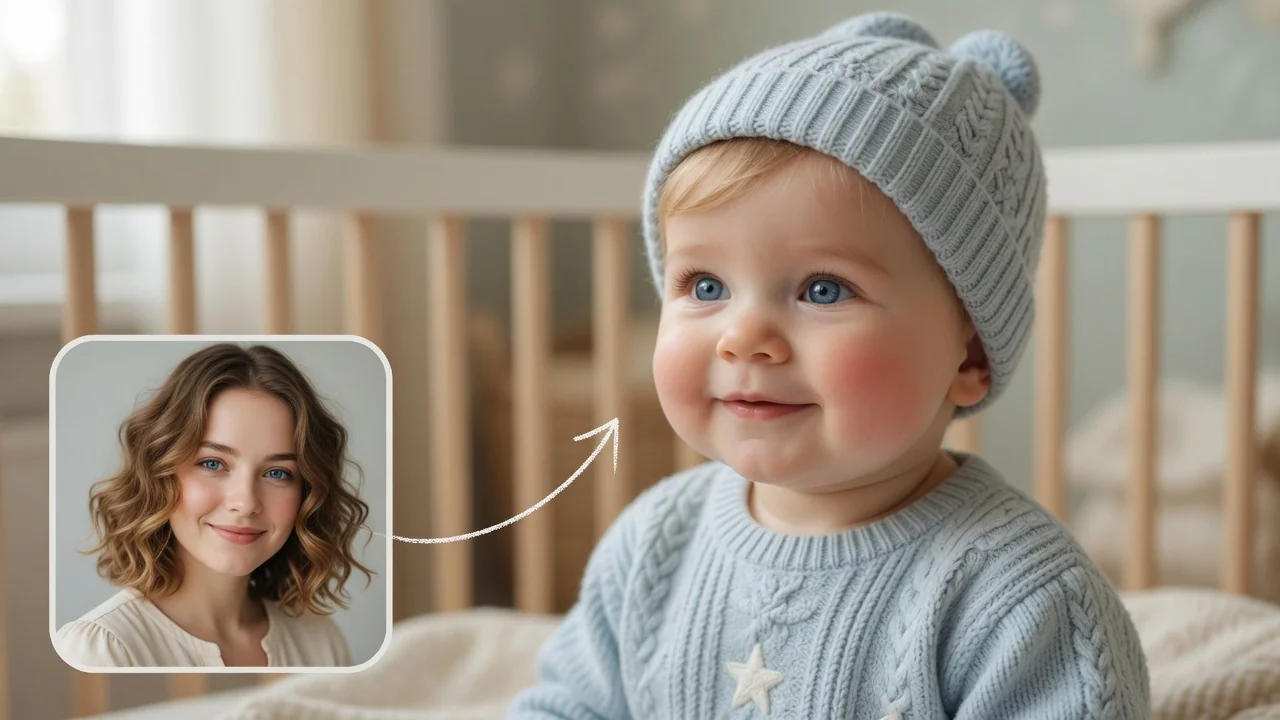
Input
1 image upload
Output
Image
Generate with prompt
Default model
Aspect ratio
How it works
Step 1
Add a single clear photo of the face you want to age. Frontal shots with visible skin texture give the transformation the most believable detail to work with.
Step 2
Edit the prompt to specify the shift — age to around seventy, or make twenty years younger. Bone structure and identity are preserved; only the age markers change.
Step 3
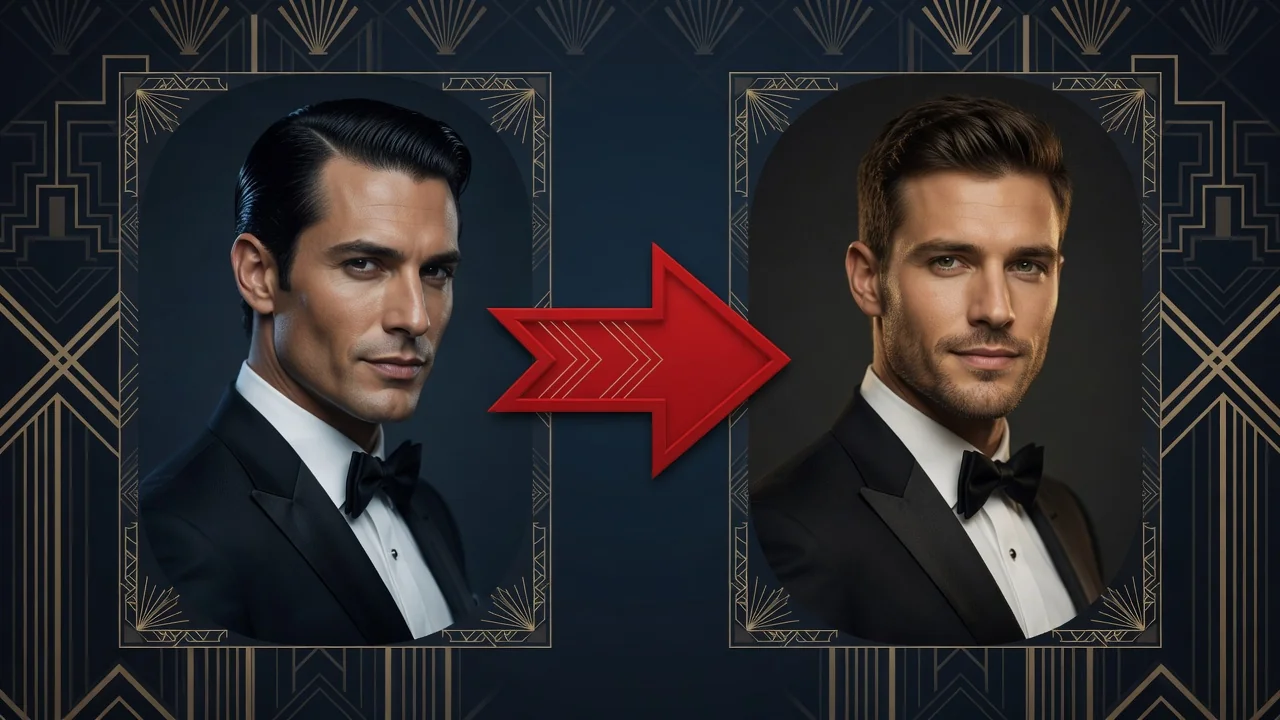
Review the result next to the original. Wrinkles, hair color, and skin tone shift gradually rather than being painted on. Rerun with a different target age anytime.
Why use it
Each tool uses a known model route instead of asking users to guess IDs.
Best default for photorealistic edits, instruction following, and structure preservation.
Ready tools connect directly to the AI Pin Maker generation workspace.
Related tools help continue from generation into cleanup, conversion, and publishing assets.
FAQ
It runs GPT Image 2, chosen for structure preservation in photoreal edits. Aging is applied through skin texture, hair, and facial volume changes while your underlying bone structure stays fixed, avoiding the rubbery filter look.
Yes — the direction is set in the prompt. Run one generation asking for a younger version and another for an older one; each run produces its own downloadable portrait.
It works on any clear portrait, including scanned prints, though sharper input yields more convincing texture. If the scan is soft, run it through a photo enhancer first for better results.
Yes — name it in the prompt. Asking for a sixty-year-old version produces a stronger, more consistent shift than saying slightly older, because a concrete age gives the model a clear target.
Related tools
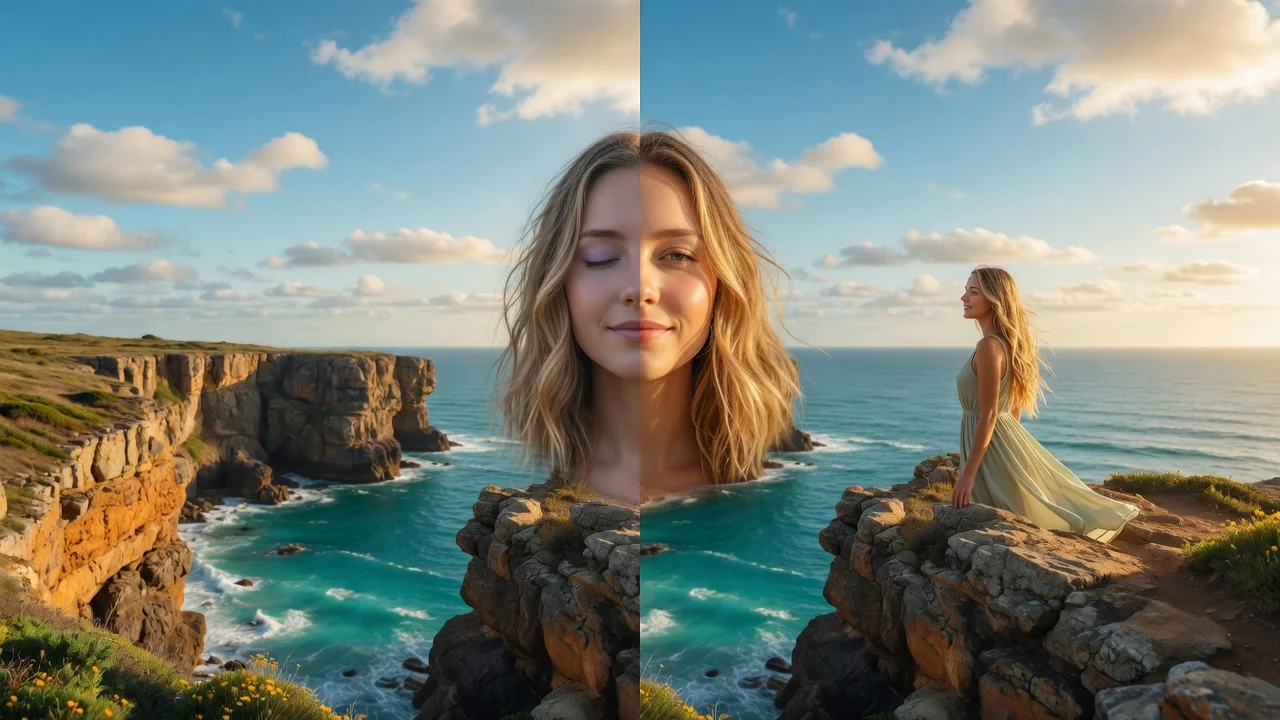
Edit portraits naturally with AI. Subtle retouching, expression polish, and face-safe adjustments that refine skin and features without looking artificial.
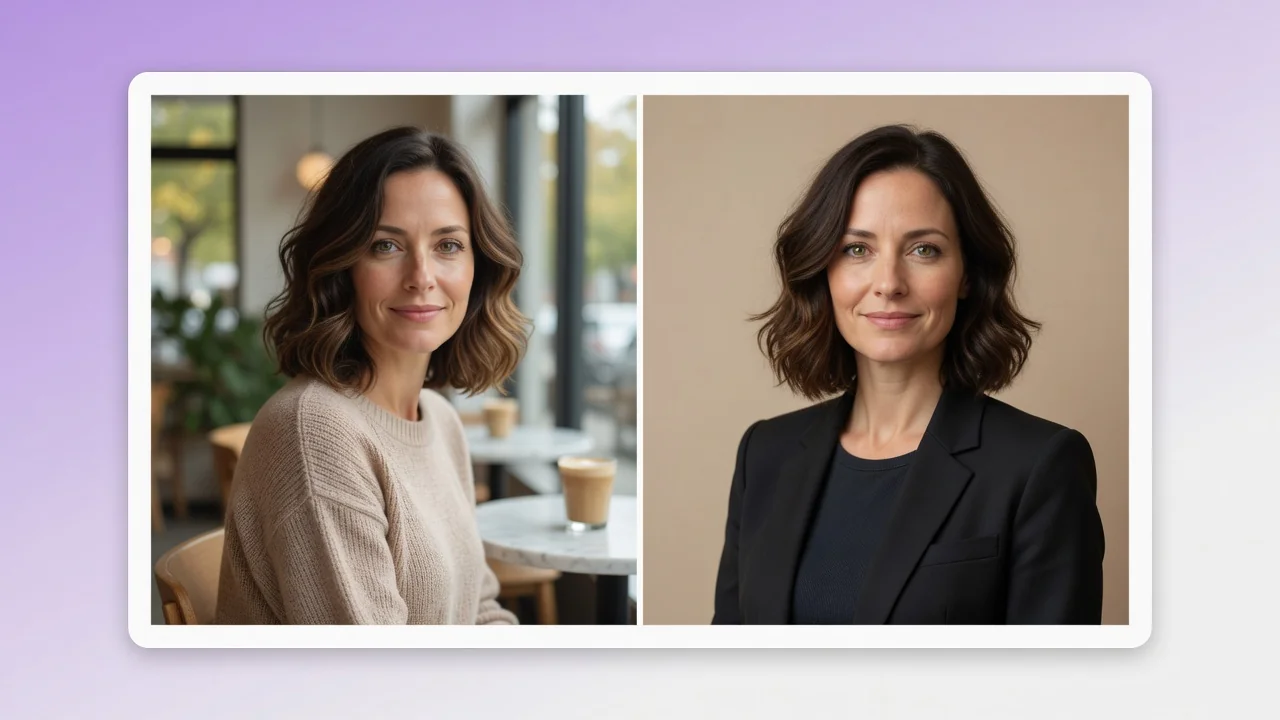
Turn a casual selfie into a professional AI headshot for LinkedIn, resumes, and team pages. Studio lighting and clean backgrounds, no photographer needed.
Swap faces between two photos with AI. Skin tone, lighting, and angle match automatically so every identity stays sharp and natural for portraits or memes.